The column most to the right of the assessment workspace is the Approvals Status column. If you are part of an approvals group (on how to add yourself to an approvals group see Section 2.3.3 of this manual. About the mApproval function please see Section 10 of this manual).
The small number on the upper right side of the icon denotes the number of users who have approved the assessment.
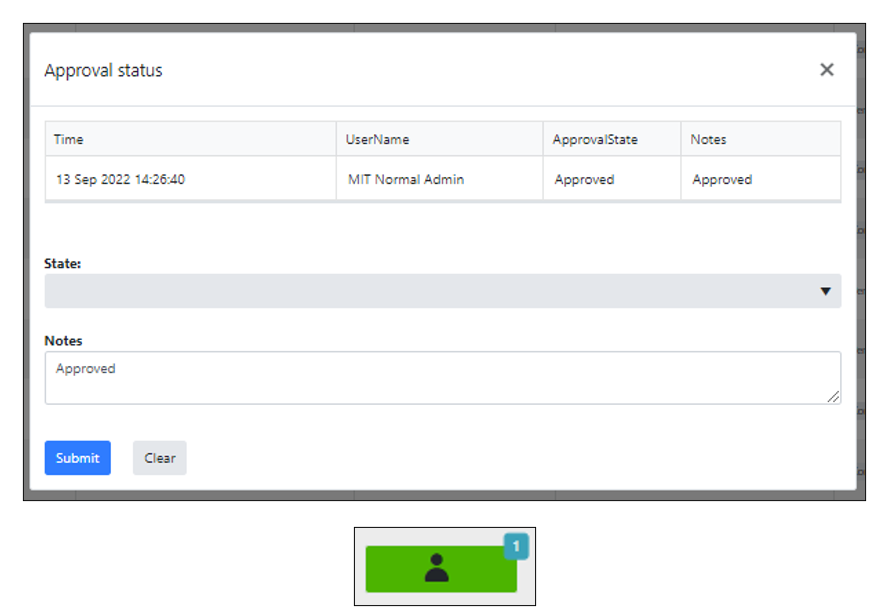
If you are part of an approvals group, clicking on the approvals icon will open the following screen, which will both show you the users who have approved the assessment, and allow you to add your own approval. Once the assessment had reached the minimum number of approvers, the approval icon will turn green. If the assessment had not been approved by the required number of approvers and had been rejected by any of them, the icon will become red.