
At the upper right corner of the assessment report screen you will find the “Additional Actions” button. Opening it will present you with the following menu:
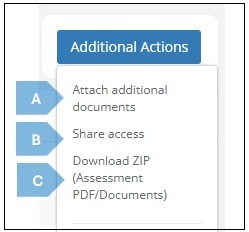
Below you will find a short explanation of these three elements.
|
|
Element |
Function |
|
A |
Attach Additional Documents |
Clicking this button will open the “Attach Additional Documents” screen. 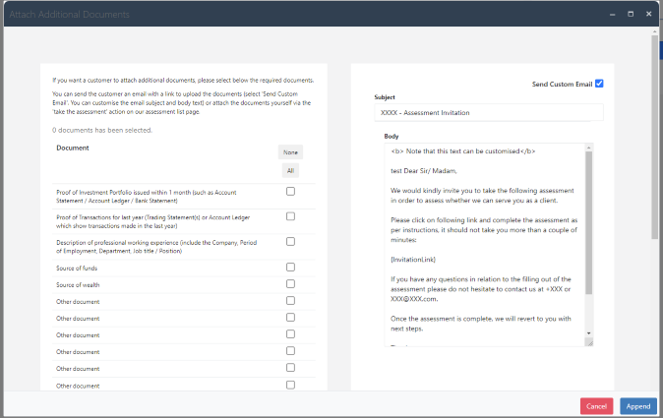
This screen allows you to ask your client for additional documents, such as a utility bill or an incorporation certificate (as pre-configured by you. On that, see Section 8.1 to this manual). This function enables you to personalise an email to the client, and send it to them directly from the Platform. It also allows you to have all the client journey and documents in one place, with a full audit trail. Important note on personalising the email: please do not delete the below html commands from the email (the words that appear below in blue are the ones that will appear in the email itself, and those can be edited): <div style="text-align: left;"><br />To complete the application, click <u><a color: #0380ff; font-weight: bold; text-decoration: underline;" href="{InvitationLink}" target="_blank">HERE</a></u>.<br />
|
|
B |
Share Access |
Clicking this button will open the following screen: 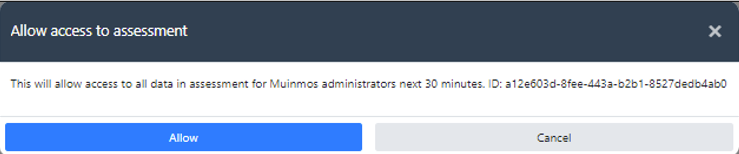
This button allows you to give the Muinmos team access to the data of a specific assessment, for 30 minutes. This is useful in case you need some support in relation to a specific assessment, but of course do not want the data to leave the Platform’s secure environment, and to limit it in time. Our team, of course, will only access the data in order to assist you, and will not save it, transfer it or use it in any way except for support purposes. |
|
C |
Download ZIP (Assessment PDF/Documents) |
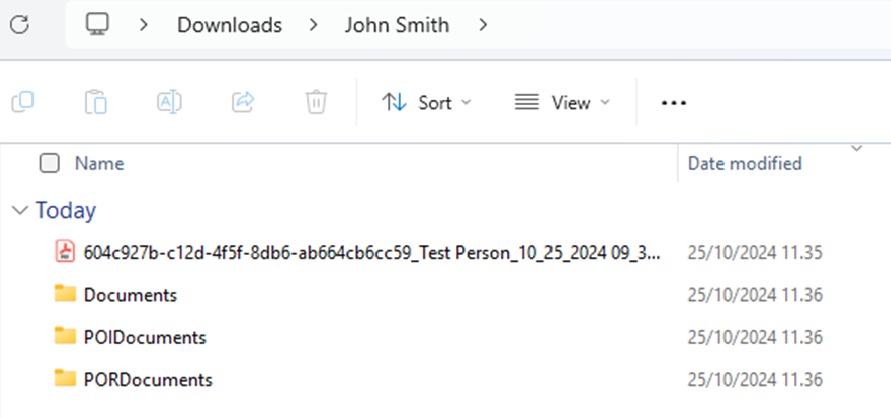
Clicking this button allows admin and support users to download a ZIP file which includes all documents collected during the assessment (proof of identity, proof of residence, additional documents) as well as the assessment report itself, in PDF form. As is the case with all ZIP files, this file too can be “extracted”. 
Note, that the extracted folder will be named after the individual or corporate assessed.
|