
Above we saw how to start (and stop) monitoring specific clients, both through the monitoring tab in the clients’ assessments and through the general monitoring list.
However, sometimes you would want to automatically start monitoring a certain type of clients. This can be done by inserting an automatic monitoring rule into the check profile (KYC Profile).
Here’s how to do it.
Go to:
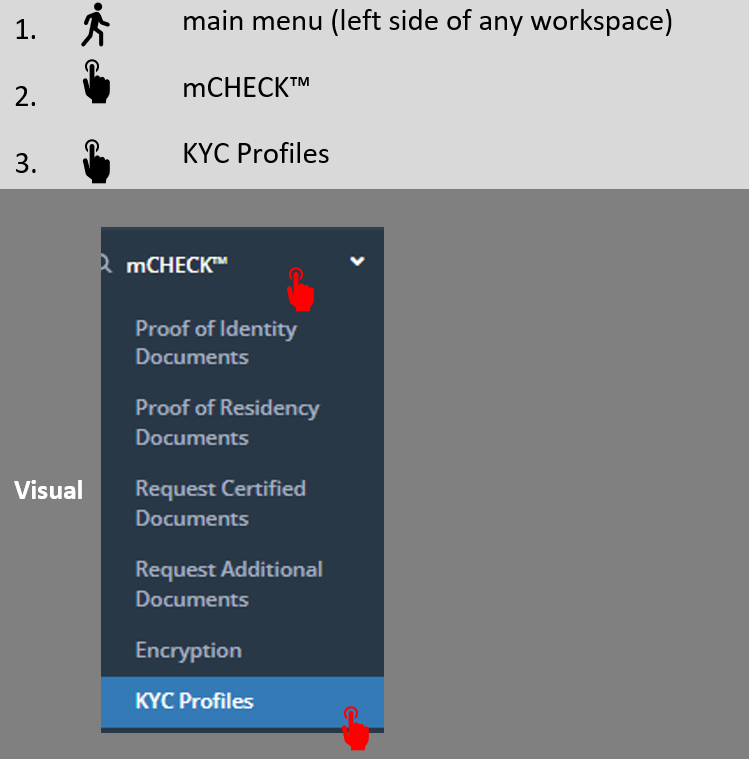
You will now see your Platform’s KYC Profiles.
Click on the small triangle next to the profile’s name in order to expand it, as per the below.

You will now see the full list of this profile’s underlying rules, the scores assigned to each rule, etc. In order to add a monitoring rule, select “Add new record”.
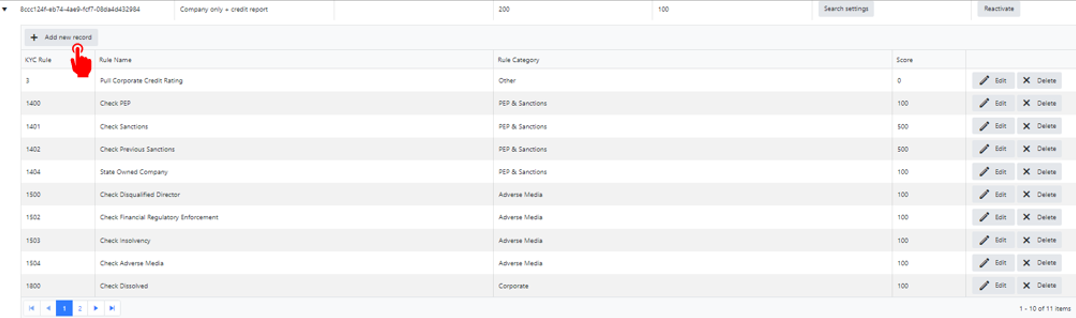
The following screen will open:
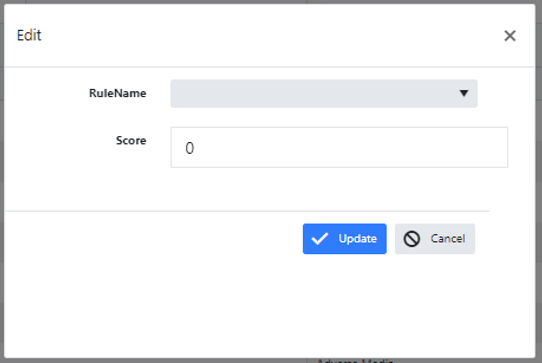
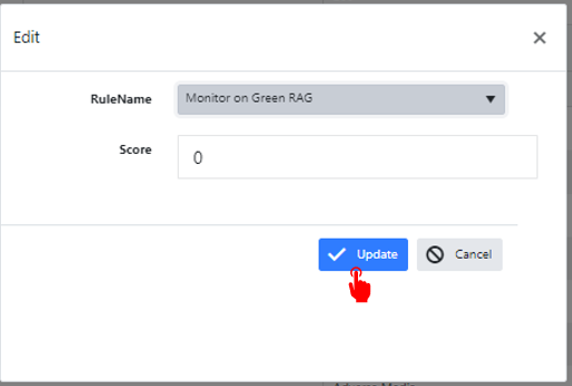
Open the “RuleName” dropdown, and select, from the “Other” list, one of the two:
-
“Monitor on Green RAG” rule: this will activate PEPs Sanctions & Adverse Media, as well as corporate monitoring, for each new green RAG received using this check profile.
-
“Monitor Document on green RAG” rule: this will activate document monitoring (for either POR, POI or other documents) for each new green RAG received using this check profile.
See for example as per the below:
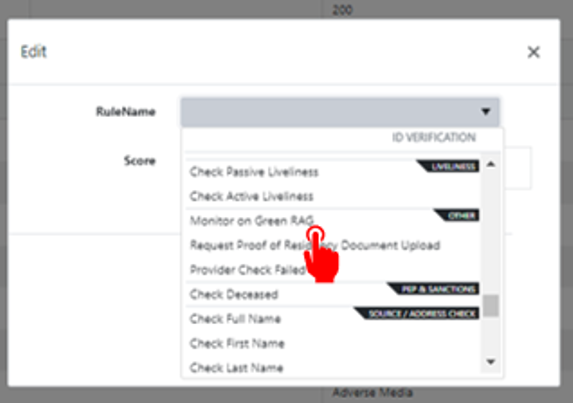
After selecting the relevant rule, click “Update”.
The aforementioned rule will now be added to the specific KYC Profile, which means, that every client that will be checked using a certain KYC Profile from the moment you make the change going forward, which has a “Green” RAG score, will be automatically added to the respective monitoring list.
NOTE: if you want this to apply to all clients checked going forward, you need to repeat these steps for ALL KYC Profiles.