
Once all acknowledgments have been accepted, the below screen will display:
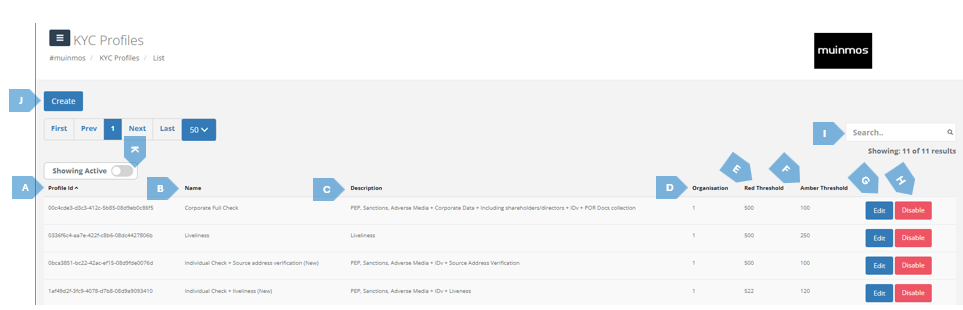
This screen contains the list of KYC profiles.
What is a KYC profile? A KYC Profile is a set of certain rules that determine checks for a client, such as PEPs, Sanctions, Adverse Media, Identity Verification (IDV), Corporate Data and more. Essentially, it defines the verification elements a client is subjected to.
Below, you will find a comprehensive breakdown of the components on the screen:
|
|
Element |
Explanation |
|
A |
Profile ID |
Unique identifier that corresponds to a specific KYC Profile |
|
B |
Name |
The name of a profile. TIP : For efficiency, select a profile name that clearly reflects its contents, such as “Individual Basic Check” or “PEP, Sanctions & AM ONLY”. A descriptive name will enable quicker selection by providing immediate insight into the profile’s scope. |
|
C |
Description |
Details the checks that are to be carried out under the profile, outlining the specific verification steps taken by using it. |
|
D |
Organisation |
Denotes the unique number of your organisation (Platform). |
|
E |
Red Threshold |
Denotes the score from which an assessment performed according to that KYC Profile will receive a “Red” RAG Score. Meaning, if the combined score of an assessment is equal to that number or exceeds it, the overall RAG determination for the assessment will be Red. |
|
F |
Amber Threshold |
If the combined score of the assessment is equal to this number or exceeds it (up to the point it reaches the RED Threshold), the overall RAG determination of the assessment will be Amber. |
|
G |
Edit |
Enables modifications to an existing KYC Profile, including renaming, updating rules, adjusting scores, and evaluating fuzzy logic parameters.
|
|
H |
Disable |
Disables an existing KYC Profile. |
|
I |
Search |
The search bar is designed for efficiency, allowing you to quickly locate profiles by name or specific elements. As you type, the results will dynamically narrow down to match the keywords entered, streamlining your search process. |
|
J |
Create |
Allows the user to create a new KYC Profile.
|
|
K |
Showing Active |
Denotes what type of KYC Profiles are shown. If “Showing Active” is visible, you are viewing the KYC Profiles which are in use. Toggling the switch will change the tag to “Showing Disabled”, and the list will display KYC Profiles that are not currently in use. |