
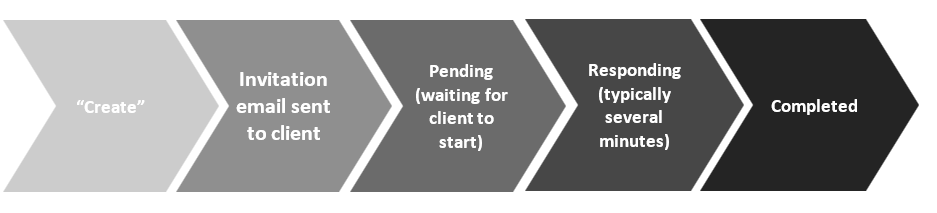
After pressing “Create”, an email will be sent to the client (unless disabled because you want to run the assessment on behalf of your client), inviting them to take the assessment (about how to personalise this email, please refer to Section 11.2 of this manual).
You will receive a notification when the client had finished the assessment. You could then go into the assessment and check its results (in fact, you could do that also when the assessment is tagged “Pending” – but we’ll concentrate here on the completed assessment only).
You can also keep track of the assessment’s status under the “Status” column (item “O” in the diagram in Section 3.2). It has four states:
-
Pending – the client has yet to start the assessment.
-
Responding – the client has started the assessment, but hasn’t completed it yet (they’re still responding to it).
-
Completed – the client had finished completing the assessment.
-
Archived – the assessment had been archived.
And now that we’ve learnt to know the assessments workspace and how to create new assessments, let’s make our way to the assessment report.