
Now that we’ve seen the overall score, let’s take a closer look at the components that make up this score.
The overall score is the outcome of numerous actions taken by the Platform. We call these actions “rules”. The combined result of these rules comprises the “Total Score”; which is, as we saw above, a numeric value assigned to the client. The RAG, as previously stated, is determined by the thresholds configured (for more about configurations see among others Section 8.6 of this manual).
The different rules are many – and their tag-line is usually self-explanatory. In the screengrab below, for example, you can see the entity (a corporation, in this case) is not a PEP, is not sanctioned nor has never been sanctioned, is not bankrupt, etc.
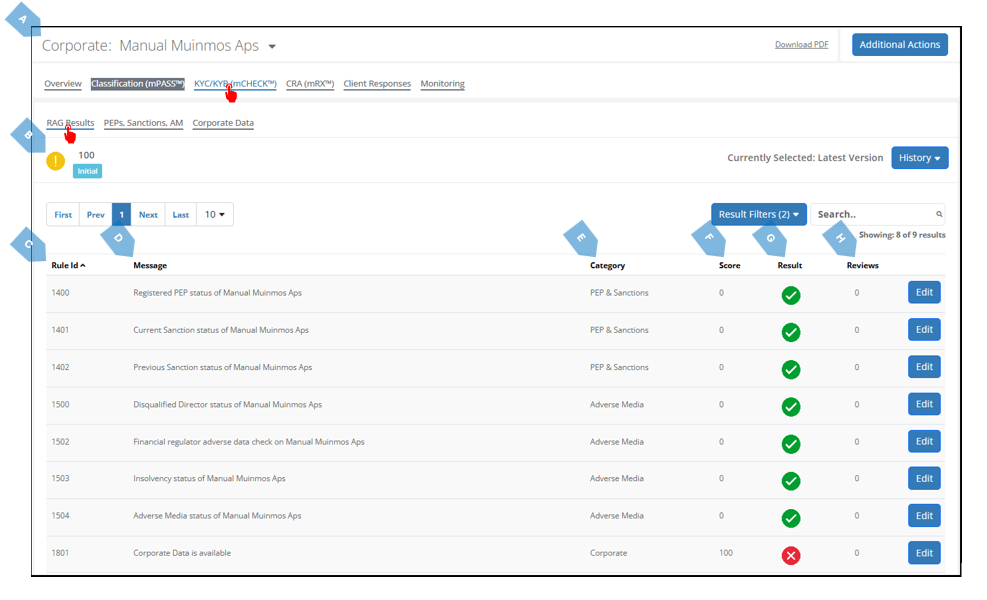
Here is a breakdown of the different elements on this page (apart from the individual rules, which are many, and explaining them exceeds the scope of this manual):
|
|
Element |
Explanation |
||
|
A |
Entity Name |
Here appears the name of the entity you checked. |
||
|
B |
RAG Score |
Here you will see the total score the entity had received. |
||
|
C |
Rule ID |
The specific rule’s code in the Platform. |
||
|
D |
Message |
This is what the rule does. Meaning, what the Platform had checked for. |
||
|
E |
Category |
This is the check under which the rule was triggered. |
||
|
F |
Score |
Here appears the score the examination of the specific rule has yielded. A score of “0” means there was no negative find. A score higher that that means there was a find. |
||
|
G |
Result |
There are several possible results for the rule’s check. |
||
|
|
|

|
All okay – there were no negative findings. |
|
|
|
|

|
There was a negative find in regard to the specific rule. |
|
|
|
|

|
Result was changed via “Override” function. |
|
|
|
|

|
Data type is not available or not applicable. |
|
|
H |
Reviews |
Here you can see how many overrides of a specific result were made; and, of course, override it (if you have the appropriate credentials). This is how you override: |
||
|
|
|
|
Click on the “Review” button next to any RAG result 
|
|
|
|
|
2. |
The following screen will open: 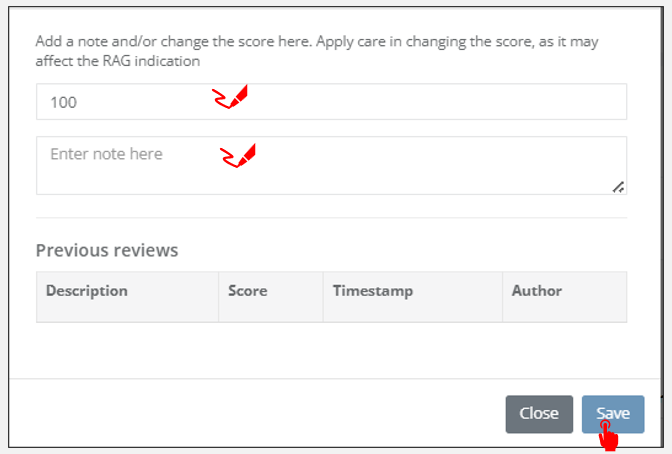
|
|
|
|
|
3. |
Fill in the new score you think is fitting. |
|
|
|
|
4. |
Fill in the reason you are overriding the Platform’s determination (for example, if the client has provided documents proving the alert was wrong). |
|
|
|
|
5. |
Press “Save”. |
|
|
|
|
6. |
A pop-up will appear at the top of the screen. To approve the override, press “Save All” (“Discard All” will discard of all unsaved overrides). 
After pressing “Save All”, a pop-up will appear stating the changes have been updated, and you will be able to see them in the report. 
|
|
|
|
|
7. |
Note, that after the override is complete, the RAG of the specific rule which was overridden will be yellow with an “information” icon, regardless of the score (the overall RAG will change according to the overall score). 
|
|
|
|
|
|
And should you want to override again, you will see the override in the override screen, as per below. 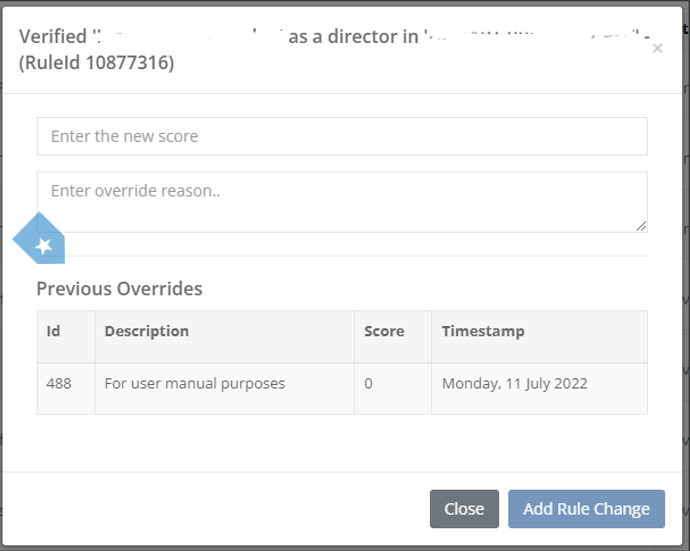
|
|
|
|
|
8. |
Also note, that after the override process is complete, the assessment’s status will change from “Initial” to “Override”. 
|
|